
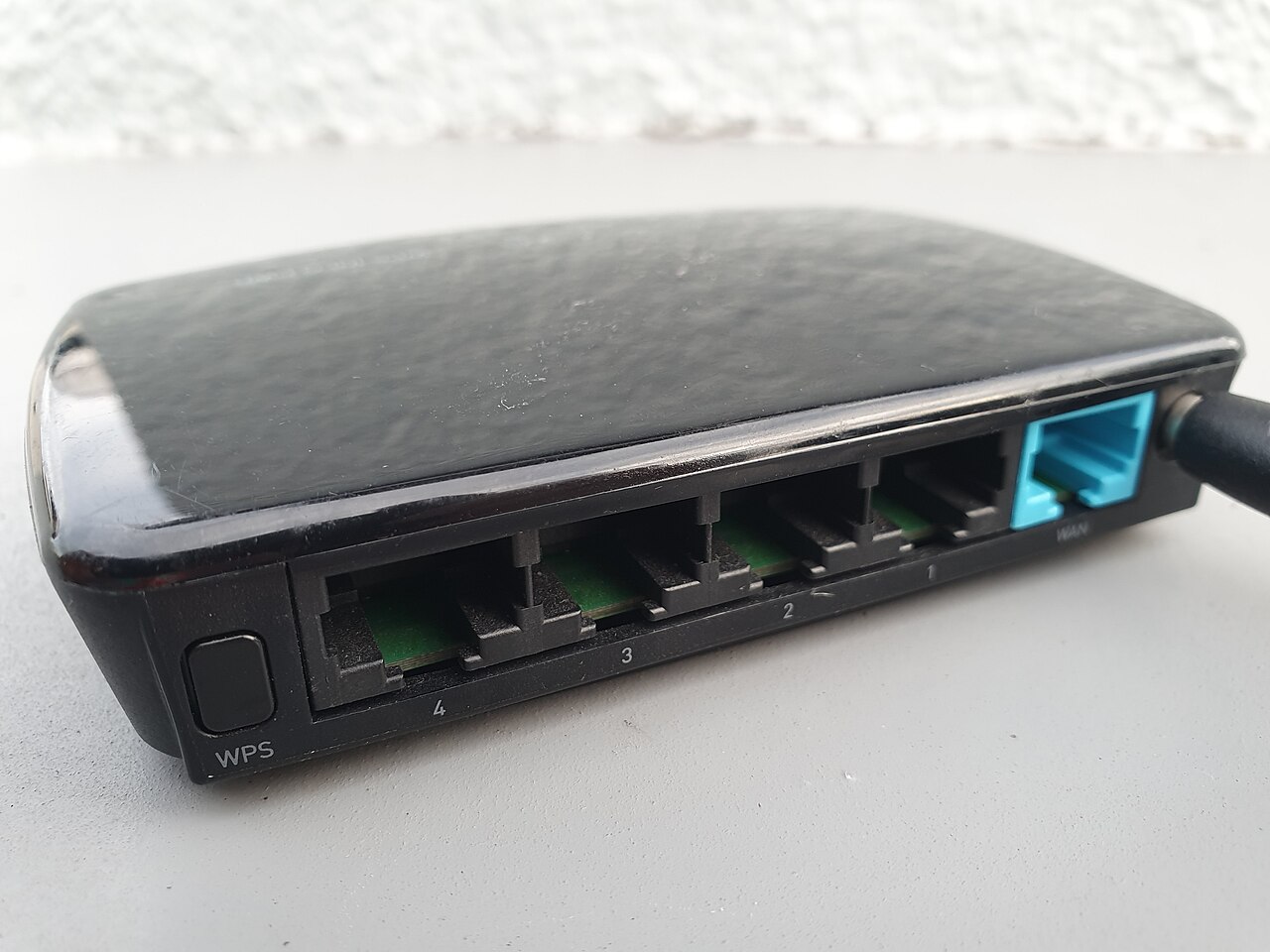
The jargon on router boxes, explained plainly, with the security settings that matter more than any speed number printed on the front.
Router and mesh system boxes compress a lot of engineering into a wall of acronyms: Wi-Fi 6E, WPA3, backhaul, multi-gig. Some of it describes features that matter in an apartment building full of neighboring networks. Some of it is a speed number no single device will ever reach. Knowing which is which makes comparing equipment easier, and it starts with the vocabulary.
Wi-Fi Generations: What the Numbers on the Box Mean
802.11: The family of wireless standards written by the IEEE, the body that develops them. Generations long carried codes like 802.11b and 802.11ac, and the IEEE still uses that naming, so manuals and labels continue to say 802.11 even though shoppers see numbers now. The Wi-Fi Alliance, the trade group that certifies Wi-Fi products, added simpler numbered names because the old codes were confusing and not alphabetical. Wi-Fi 5 is the Alliance name for 802.11ac, an older generation built mainly around raw speed on the 5 GHz band. Everything after it changed the goal.
Wi-Fi 6: The Alliance name for 802.11ax. It runs on the 2.4 GHz and 5 GHz bands, and its real improvement is not speed with one laptop in an empty house. It is how many devices can share the air at once without stepping on each other, which is what matters when a household runs dozens of connected gadgets.
Wi-Fi 6E: The same 802.11ax standard with access to the 6 GHz band, which the FCC opened for unlicensed use. It is not a new standard, just the old one with more room. Because no older-generation devices are allowed on that band, it works like an exclusive lane for capable hardware.
Wi-Fi 7: The name for 802.11be. It uses all three bands and adds Multi-Link Operation, which lets a single connection span multiple bands at the same time instead of betting on one link, along with larger channel widths on 6 GHz.
| Name on the box | IEEE standard | What it actually changed |
|---|---|---|
| Wi-Fi 5 | 802.11ac | Speed on the 5 GHz band |
| Wi-Fi 6 | 802.11ax | Efficiency with many devices at once |
| Wi-Fi 6E | 802.11ax | Adds the 6 GHz band; same standard otherwise |
| Wi-Fi 7 | 802.11be | Multi-Link Operation and wider channels |
Bands Explained: 2.4 GHz, 5 GHz and 6 GHz
Frequency shapes reach. Lower frequencies travel farther and get through obstacles better, but they are crowded and slower. Higher frequencies carry more data but cover less distance and lose to walls.
2.4 GHz: The long-reach band. It penetrates obstacles better than the higher bands, which is why distant rooms often cling to it, but it is crowded and slow by modern standards.
5 GHz: The middle band. More bandwidth than 2.4 GHz, shorter range, and more sensitive to obstacles, so it favors devices near the router.
6 GHz: The newest band, much wider than 2.4 or 5 GHz, with enough spectrum to carry seven 160 MHz channels at once. WPA3 is the only security option allowed on it, and no legacy devices are slowing it down.
Mesh Nodes, Extenders and Backhaul
Coverage gear has its own vocabulary, and it is where a lot of upgrade money goes.
Mesh system: A main router paired with satellite nodes that repeat one network through the house, instead of a single box trying to cover everything. Extenders do similar work but often create a separate network name.
Backhaul: The connection between the router and its nodes. A wired backhaul uses Ethernet and does not share airtime with your devices; a wireless one does. Boxes advertise multi-gig Ethernet ports partly for this job.
Security Standards: WPA2, WPA3 and Why WEP Still Appears
The FTC’s advice on routers starts with encryption: make sure your router offers WPA2 or WPA3 and that it is turned on, because encryption protects information sent over your network so outsiders cannot read it.
WEP: An early security option that still shows up in some router menus. Security guidance treats it as outdated, because the newer WPA standards offer far more protection. A network you care about should not use it.
WPA2: The encryption floor. The FTC says to use at least WPA2, so a new router that cannot offer it is not worth the box it ships in.
WPA3: Significantly stronger than WPA2, with better defenses against attempts to brute-force a network’s password. Wi-Fi 6E certification requires it, which is why the 6 GHz band runs WPA3 only.
Watch for
When you set up any router, change the default administrative username and password, and pick a network name and password that do not include your name, your address, or the router brand.
Guest Networks, Port Forwarding and Other Settings
SSID: The technical name for your Wi-Fi network’s name. Manufacturers assign a default, and federal guidance recommends changing it to something unique that does not identify you or your equipment.
Guest network: A separate network visitors connect to instead of your primary one. It also makes sense for internet-of-things devices such as smart appliances and web-connected cameras, which carry their own vulnerabilities; isolation keeps a compromised gadget away from your work laptop and files.
The risks there are not hypothetical. The FTC’s case against the camera company Ring ended with the company agreeing to pay $5.8 million to affected customers after lax security exposed customer videos, including footage of children, to online attackers. For the settings that matter on cameras specifically, see our guide to home security cameras without the privacy problems.
Remote management: A feature that lets you administer the router from outside your home. Security guidance says to disable it unless you have a specific need; if you truly need it, protect it with multi-factor authentication.
Port forwarding: A setting that opens a path from the internet straight to one device on your network. Leave it off unless something genuinely needs it, because every open path is one more thing to secure.
QoS: Quality of service, a set of controls for prioritizing some traffic over others, such as video calls over game downloads. Useful on paper; worth checking whether a router’s version is simple enough that you would actually use it.
Firewall: A guard on the network that watches for attempts to access your system and blocks communications with sources you do not permit. Turn on the router’s built-in firewall; your devices have their own software firewalls as well.
Firmware and the Device Lifecycle
Firmware: The software inside the router itself. Manufacturers release updates to patch known vulnerabilities, and the FTC notes that software updates often contain critical protections. Security guidance suggests checking for firmware updates at least quarterly and enabling automatic updates if the router supports them.
The rest of the lifecycle matters too. If a manufacturer stops supporting a modem or router, new vulnerabilities may never get a fix, which is why one security guide recommends replacing that hardware at least every five years. Older devices you no longer use should be disconnected from the network entirely, since their security may be out of date and create a weak point. And if a retired router or smart device is headed out the door, wipe it properly first; we explain how in how to wipe your data before selling a smart device.
Speed Ratings Versus What Your Internet Plan Delivers
Theoretical speed: The big number printed on the box. It describes what the hardware can do under ideal conditions a home never matches, and treating it as a ladder to climb leads shoppers toward the wrong equipment. A Wi-Fi 6 network’s real advantage shows up with many devices sharing the connection, not with one fast laptop in an empty room.
What the box advertises is a ceiling for your local wireless network, not a promise about the internet coming into your home. Your plan with your provider sets the incoming speed, and the router’s job is delivering it to your devices without choking when the household is busy. For homes far from the router or behind many walls, the 2.4 GHz and 5 GHz bands of a Wi-Fi 6 setup can still hold their own against the newer spectrum.
Reading a Router Spec Sheet Without Falling for Marketing
A short checklist for the aisle or the product page:
- WPA3 support, with encryption that is easy to turn on. A router that offers only WPA2 meets the FTC’s floor; one that cannot manage WPA2 is a pass.
- Automatic firmware updates, or at least an update process simple enough that you will actually run it.
- Remote management disabled by default, not pitched as something to switch on during setup.
- A guest network, and a way to keep smart devices separate from your main computers.
- Physical protection worth a thought: one security guide recommends plugging the modem and router into a surge protector or uninterruptible power supply so power spikes and lightning do not end their service early.
One more habit: log into the router’s web interface now and then and look for the connected devices list, which may be labeled connected devices, wireless clients, or DHCP clients. Knowing what should be on your network makes it easier to spot what should not be. The router is the access point between your devices and the internet, and malware that lands on any device connected to a home network can spread to the others.
Once the router is settled, the devices behind it deserve a review of their own. Our privacy checkup for smart speakers, plugs, and thermostats covers what those gadgets collect and which settings change that.
The essentials
- Wi-Fi 6 is 802.11ax; Wi-Fi 6E is the same standard with access to the 6 GHz band, which the FCC opened for unlicensed use.
- The FTC says to use at least WPA2 encryption, change the router’s default admin username and password, and disable remote management unless you need it.
- The big speed number on a router box describes ideal conditions no home matches; your internet plan sets the real ceiling for what comes into the house.
- WPA3 is required on Wi-Fi 6E devices and is the only security option on the 6 GHz band; WEP still appears in menus but should never be selected.
- Check firmware updates at least quarterly, and replace a modem or router the manufacturer no longer supports, since unpatched flaws never get fixed.
Reader questions
Is Wi-Fi 7 worth it over Wi-Fi 6?
Wi-Fi 7 adds Multi-Link Operation, which lets a single connection span multiple bands at once, plus larger channel widths on 6 GHz. Wi-Fi 6 and 6E already handle many devices well, so the right choice depends on what is actually struggling on your network.
Why does WEP still show up in my router settings?
WEP is an early security option that some menus still list. Security guidance recommends the newer WPA standards instead, which offer more protection, so leave WEP unselected on any network you care about.
Do I need a mesh system?
A mesh system pairs a main router with satellite nodes that repeat one network through the house. If dead spots are the problem, a mesh with a wired backhaul keeps that link from sharing airtime with your devices.
What should I do first when setting up a new router?
Change the default administrative username and password, pick a network name that does not include your name, address, or router brand, and turn on WPA2 or WPA3 encryption before connecting your devices.
We describe how services generally work; features, settings and terms change often, and they differ between companies. This is general information, not legal advice. Check the provider’s current policies and official sources such as FTC.gov.