
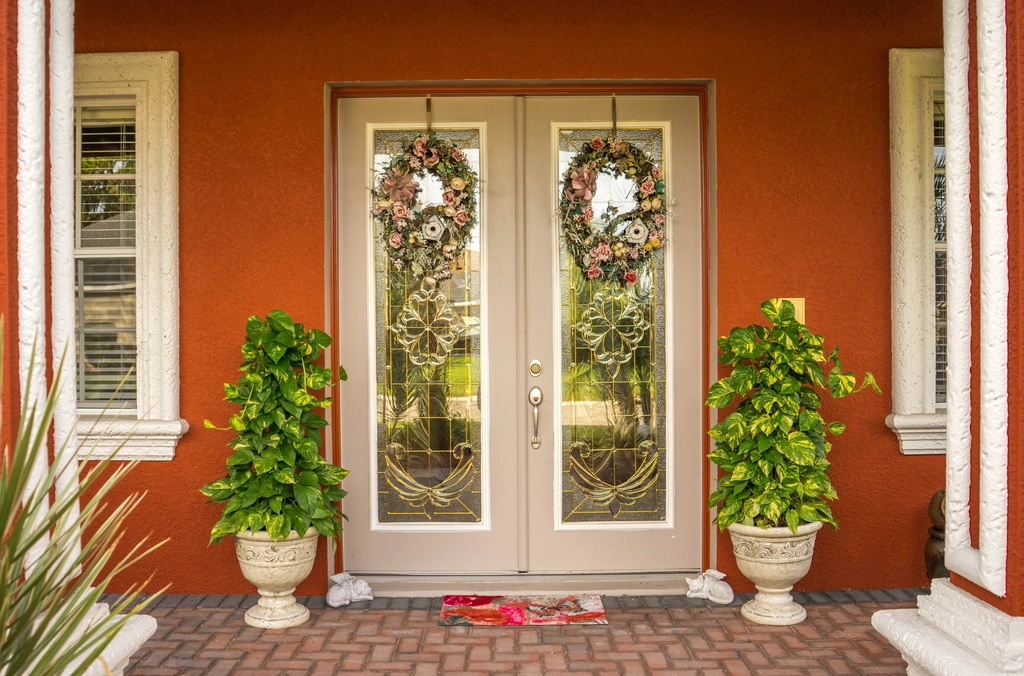
Installing a video doorbell is a manageable afternoon job, but the settings you choose before the first visitor arrives matter as much as the mounting screws. Here is the order to work through.
A video doorbell watches the one part of your house that strangers, delivery drivers and neighbors walk up to every day, which is exactly why the setup matters as much as the hardware. The job has two halves: mounting and powering the device, then locking down the account and settings before it captures its first visitor. Work through the steps below in order, and test each one before moving to the next.
What You Will Need
Gather these before you start:
- The doorbell and its included hardware: mounting screws, wall anchors, a security screw and, on some models, a wedge or corner kit to adjust the angle.
- A Phillips head screwdriver, plus a drill if you will mount to brick, stucco or another masonry surface.
- A ladder and a phone with the manufacturer’s app installed.
- Your Wi-Fi network name and password.
- A strong password you have never used anywhere else, for the doorbell account.
Step 1: Check the Doorstep for Signal, Wiring and Power
Stand at your front door with your phone and check the Wi-Fi signal. A weak connection at the door means slow live video and missed alerts, and no mounting trick will fix that. If the signal is poor, consider moving your router, adding an extender or upgrading your setup; our guide to moving smart devices to a new router covers the process if a router change is part of the plan.
Next, look at what your doorway already has. An existing mechanical doorbell means there is low-voltage wiring behind the wall you may be able to use. If you plan to touch that wiring, turn the breaker off first. While you are thinking about the network, do two things the FTC recommends for any security camera: confirm your router’s firewall is turned on and your wireless network uses WPA2 or WPA3 encryption. The FTC also suggests putting cameras on a separate network from your computers and phones, and many routers offer a guest network that works well for smart devices.
Step 2: Wired, Battery or Both
The biggest decision is how the doorbell gets power, because it changes both the install and the daily experience.
| Battery-powered | Wired | |
|---|---|---|
| Power | Rechargeable battery that needs periodic charging | Continuous low-voltage power from doorbell wiring |
| Installation | Quick do-it-yourself job, no wiring required | More involved, connecting behind the wall |
| Indoor chime | Usually app alerts or a wireless chime | Can often ring the existing chime |
If your model is battery-powered, charge it fully before mounting; manufacturer guides typically show a light pattern that tells you when the charge is complete. If it is wired, shut off the breaker and connect the existing wires to the terminals on the back. Some models accept both, and manufacturers often say to use only one power source at a time. One detail that trips people up: if you power a doorbell with a plug-in adapter instead of doorbell wiring, the app’s chime settings usually need to be set to no chime, or the indoor chime will not behave as expected.
Step 3: Mount at the Right Height and Angle
Ring’s installation guide recommends mounting the doorbell 4 feet (1.2 meters) above the ground, which puts faces in frame rather than the tops of heads or an empty porch. Too high and you capture hats; too low and you capture packages.
On a wood surface, the included screws are usually enough. On masonry, you will need the drill and wall anchors sized for the job. If the camera will sit flush against a wall or point past your porch toward the street, install a wedge or corner kit before you mount the unit, not after.
Step 4: Create the Account and Pair the Device
- Open the app and choose the option to set up a new device, then follow the pairing instructions to connect the doorbell to your network.
- Use the live view while standing at the door to check video quality, audio and the field of view before you call the job done.
- Set a strong password you have never used before. The FTC stresses this for cameras specifically, because reused passwords are a common way intruders get into feeds.
- Turn on multi-factor authentication if the app offers it. NIST researchers point out this protects you even if the password is exposed.
- Check for firmware updates for the doorbell and updates for the app, and set the app to update automatically. Camera software gets fixes for security bugs, and an out-of-date app can undermine everything else you have done.
Step 5: Lock Down Privacy Settings Before It Records
Do not leave privacy and storage settings at their defaults. The FTC’s case against Ring is the reason: the agency said the company’s poor privacy practices and lax security let employees view customers’ videos, including footage from bedrooms and bathrooms, and left customer videos open to hackers who harassed and insulted children and teens through their cameras. Ring agreed to a privacy and security program, deletions and a $5.8 million payment to affected customers. A doorbell pointed at your doorstep deserves the same scrutiny you would give any camera.
Work through these settings:
- Device permissions. Many smart devices can access the microphone, camera, Bluetooth or location. Disable any of those the doorbell does not need to function.
- App permissions. Check what the companion app requests on your phone. A camera app rarely needs your contact list.
- Encryption and security features. The FTC advises confirming your camera encrypts your account information, live streams and stored video, and turning those features on if they are not automatic.
- Cloud storage. Look at what gets uploaded, where recordings are stored and how long they are kept.
Also check whether your state gives you the right to tell a company to delete data it holds about you; the FTC points to a state privacy legislation tracker for that question.
Watch for
Review storage and sharing settings before the first recording, not after. Deleting a clip in the app does not always delete the copy in your cloud account, so check the account settings too.
Step 6: Motion Zones, Alerts and Fewer False Rings
Most apps let you draw motion zones so the camera only alerts about your own property rather than every passerby on the sidewalk. Set the zones tightly around your porch and walkway, then adjust sensitivity downward until alerts settle at a level you will actually read. While you are in the settings, disable any feature that is not central to how you use the doorbell, and if the app asks for location access, limit it to only when you are using the app rather than all the time. A doorbell that cries wolf trains you to ignore it, and every ignored alert is one you might regret.
Step 7: Sharing Access With Household Members
NIST researchers who study smart homes suggest getting agreement from everyone you live with before a device goes up, and a doorbell that records visitors is a good candidate for that conversation. Add household members through the app as separate users with their own logins instead of sharing your password; our piece on sharing passwords safely with family explains why shared credentials cause trouble across accounts. Keep payment or other sensitive details out of device accounts where you can.
Footage, Kids and Your Data Rights
The FTC treats video and voice recordings tied to identifiable people as sensitive data, and the agency has taken action against companies that failed to protect that kind of information. Doorbell footage of visitors, delivery drivers and the kids who cut across your lawn falls into that category.
Two rules are worth knowing before the recordings pile up. Federal children’s privacy law requires companies to get parental consent before collecting personal information online from children under 13, which matters when your camera records the neighborhood kids. And as noted above, some state laws give you the right to tell a company to delete data it holds about you, so check whether your state is one of them and use that right when you want footage gone.
After the Install
A doorbell is only one piece of a home camera setup, so it pays to plan the whole system with privacy in mind from the start; see home security cameras without the privacy problems for that wider view. And when the day comes to replace or sell the doorbell, follow the steps for wiping a smart device before it leaves your hands so your footage and account do not go with it.
The essentials
- Check the Wi-Fi signal at your front door and secure your router with WPA2 or WPA3 encryption before you mount anything.
- Battery models install quickly but need periodic recharging; wired models draw continuous power from existing doorbell wiring.
- Most manufacturers, including Ring’s installation guide, recommend mounting the doorbell about 4 feet (1.2 meters) above the ground.
- Use a password you have never used before, turn on multi-factor authentication, and review every permission and storage setting before the camera starts recording.
- Federal children’s privacy law requires parental consent before companies collect personal information online from children under 13, and the FTC treats video and voice as sensitive data.
Reader questions
Where should I mount a video doorbell?
Ring’s installation guide recommends mounting the doorbell 4 feet (1.2 meters) above the ground. Wedge and corner kits can adjust the angle if the camera points at a wall or misses your porch.
Should I choose a wired or battery-powered doorbell?
A wired model draws continuous low-voltage power from existing doorbell wiring, so it stays ready around the clock. A battery model is a quicker do-it-yourself install without wiring, but the battery needs regular recharging.
How do I keep my video doorbell secure?
The FTC advises using a strong password you have never used elsewhere, turning on the camera’s built-in security and encryption features, keeping your router’s firewall on with WPA2 or WPA3 encryption, and installing updates for both the camera and its app.
What should I know about my doorbell recording children?
Federal children’s privacy law requires companies to get parental consent before collecting personal information online from children under 13, which matters when your camera records the neighborhood kids. The FTC also treats video and voice recordings tied to identifiable people as sensitive data.
We describe how services generally work; features, settings and terms change often, and they differ between companies. This is general information, not legal advice. Check the provider’s current policies and official sources such as FTC.gov.